Channels
Channels are how people interact with your agent. Each agent can have multiple active channels at the same time.
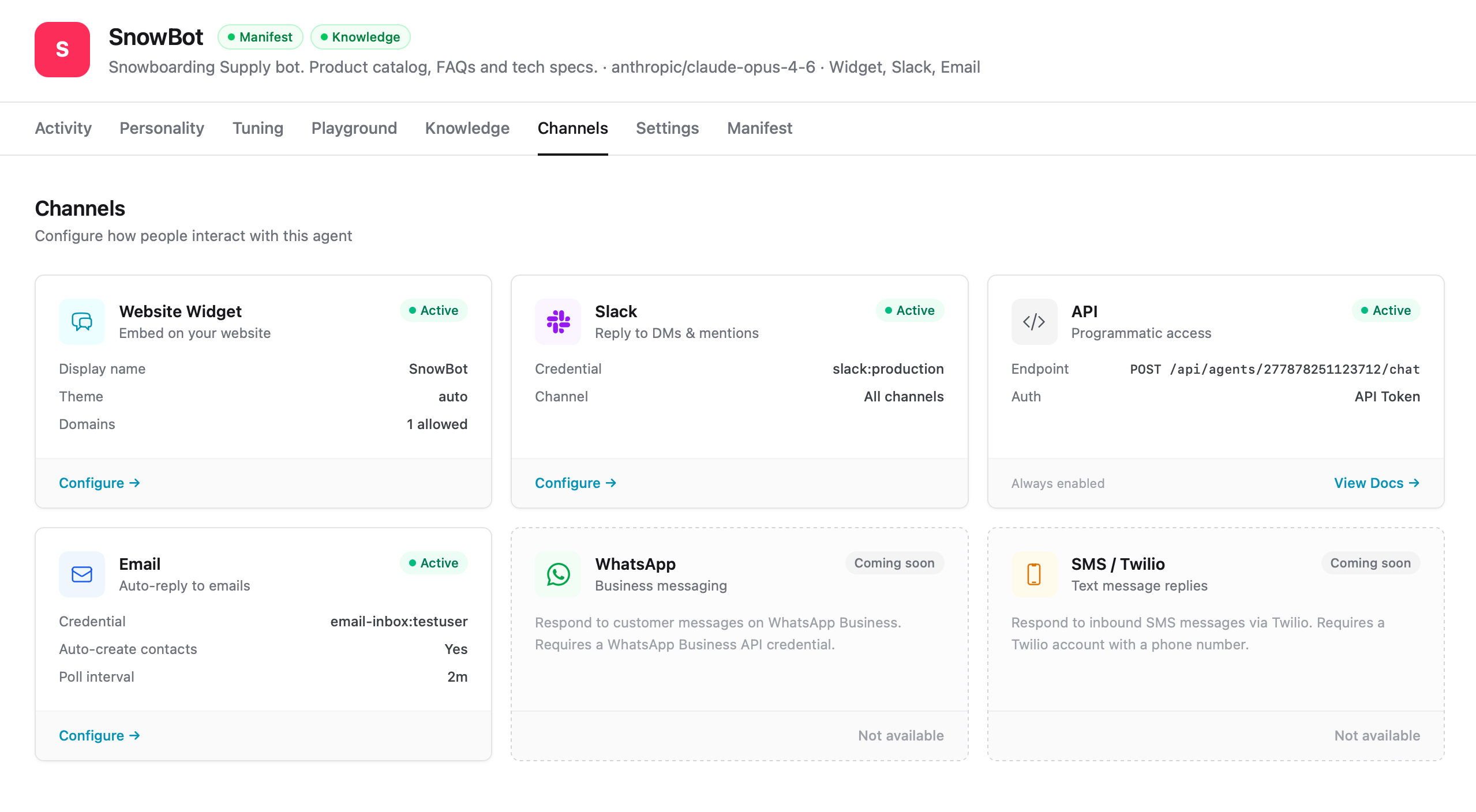
Web Widget
The Web Widget is a pop-up chatbox you embed on any website. It appears as a floating button that expands into a full chat window. Conversations persist between pages so visitors won't lose their chat history as they navigate your site.
The widget is configured through three tabs: Content, Style, and Embed. A live preview updates in real time as you make changes.
Content
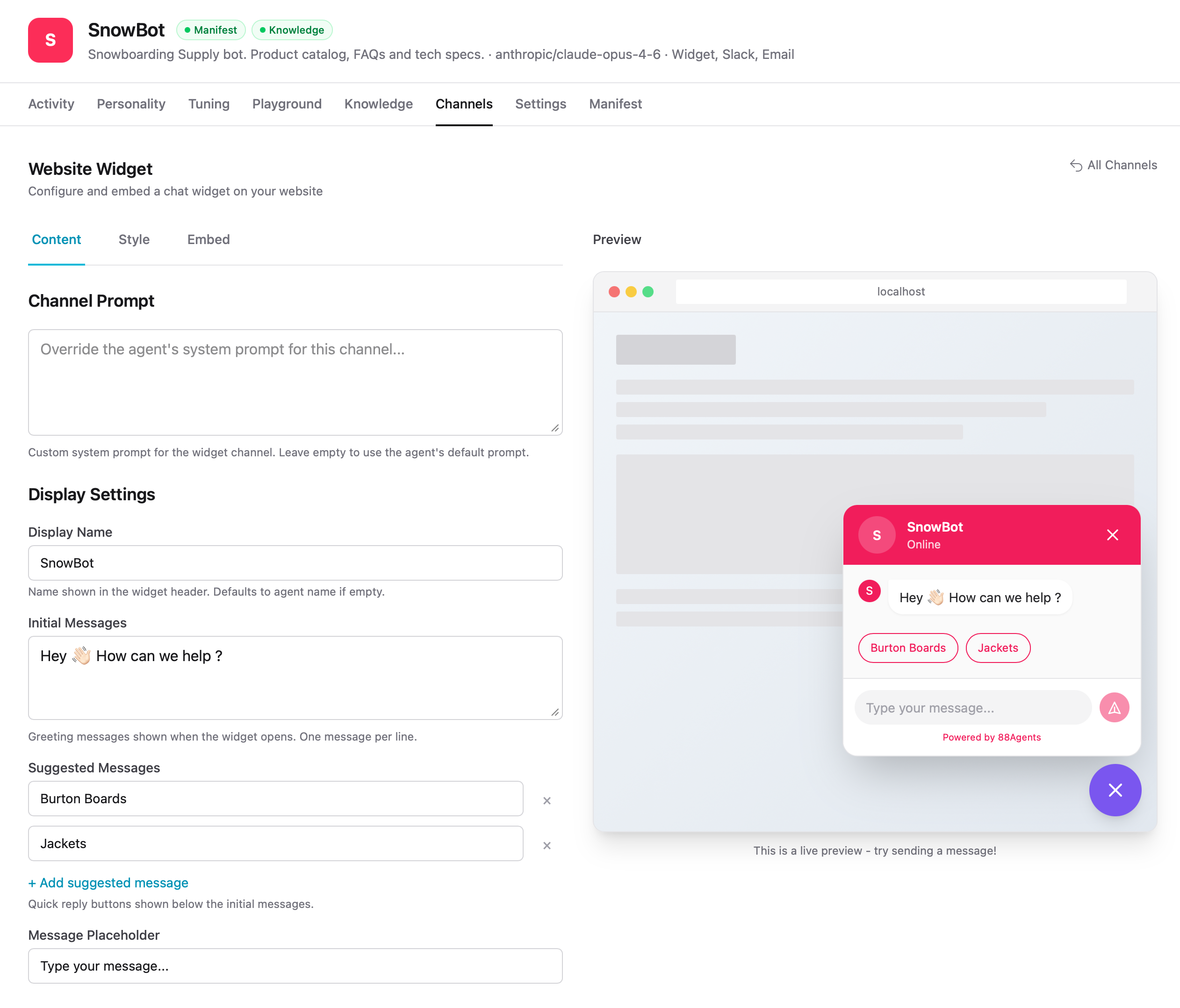
Control what your widget says and how it greets visitors.
| Setting | Description |
|---|---|
| Channel Prompt | Override the agent's system prompt for this channel. Leave empty to use the agent's default prompt. |
| Display Name | Name shown in the widget header. Defaults to the agent name if empty. |
| Initial Messages | Greeting messages shown when the widget opens. One message per line. |
| Suggested Messages | Quick reply buttons shown below the initial messages. Visitors can click these to start a conversation. |
| Message Placeholder | Placeholder text in the message input field. |
Style
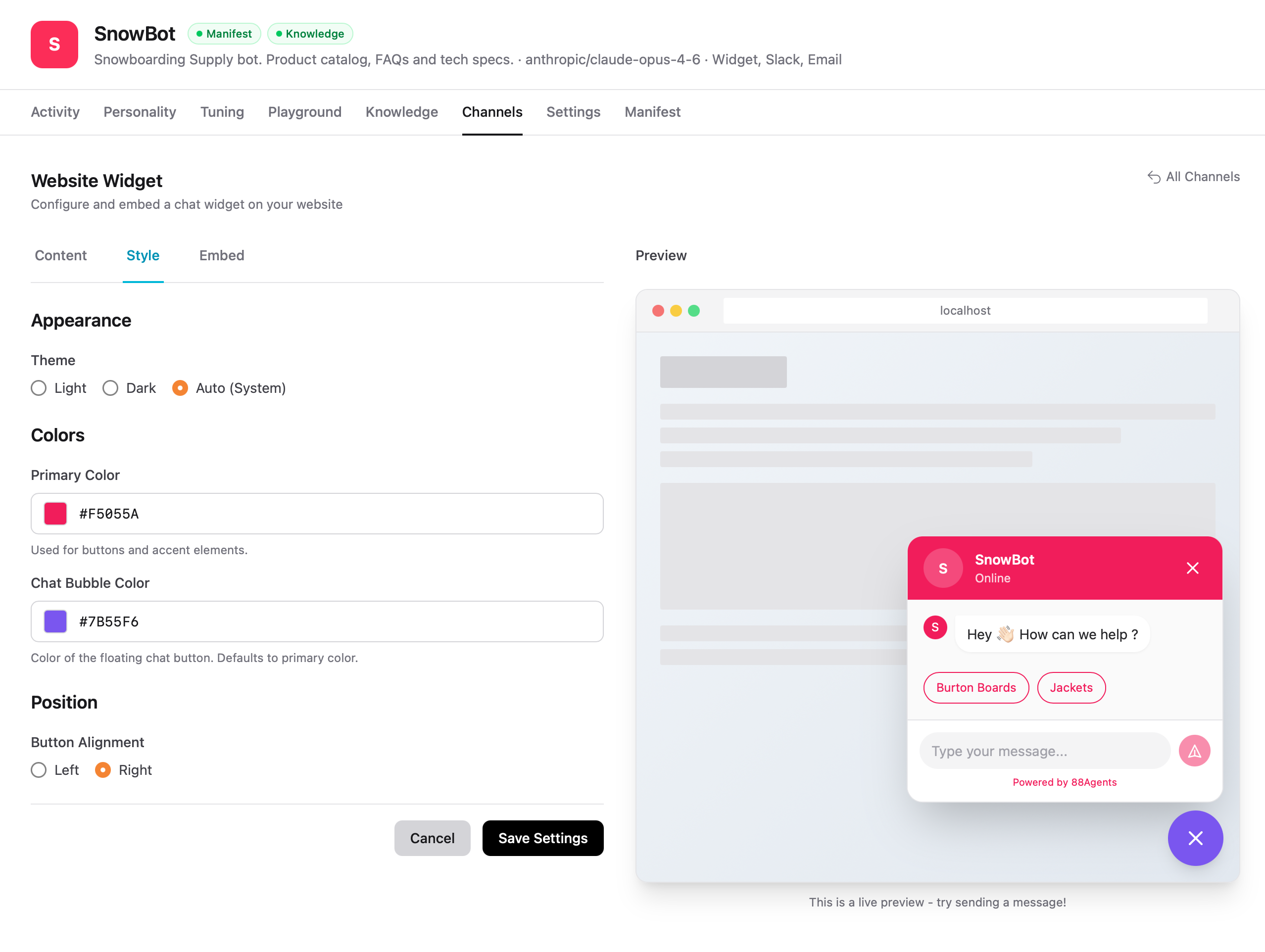
Customize the widget's appearance to match your brand.
| Setting | Description |
|---|---|
| Theme | Light, Dark, or Auto (follows the visitor's system preference). |
| Primary Color | Hex color used for buttons, the header, and accent elements. |
| Chat Bubble Color | Hex color for the floating chat button. Defaults to the primary color if not set. |
| Button Alignment | Position the floating button on the Left or Right side of the screen. |
Embed
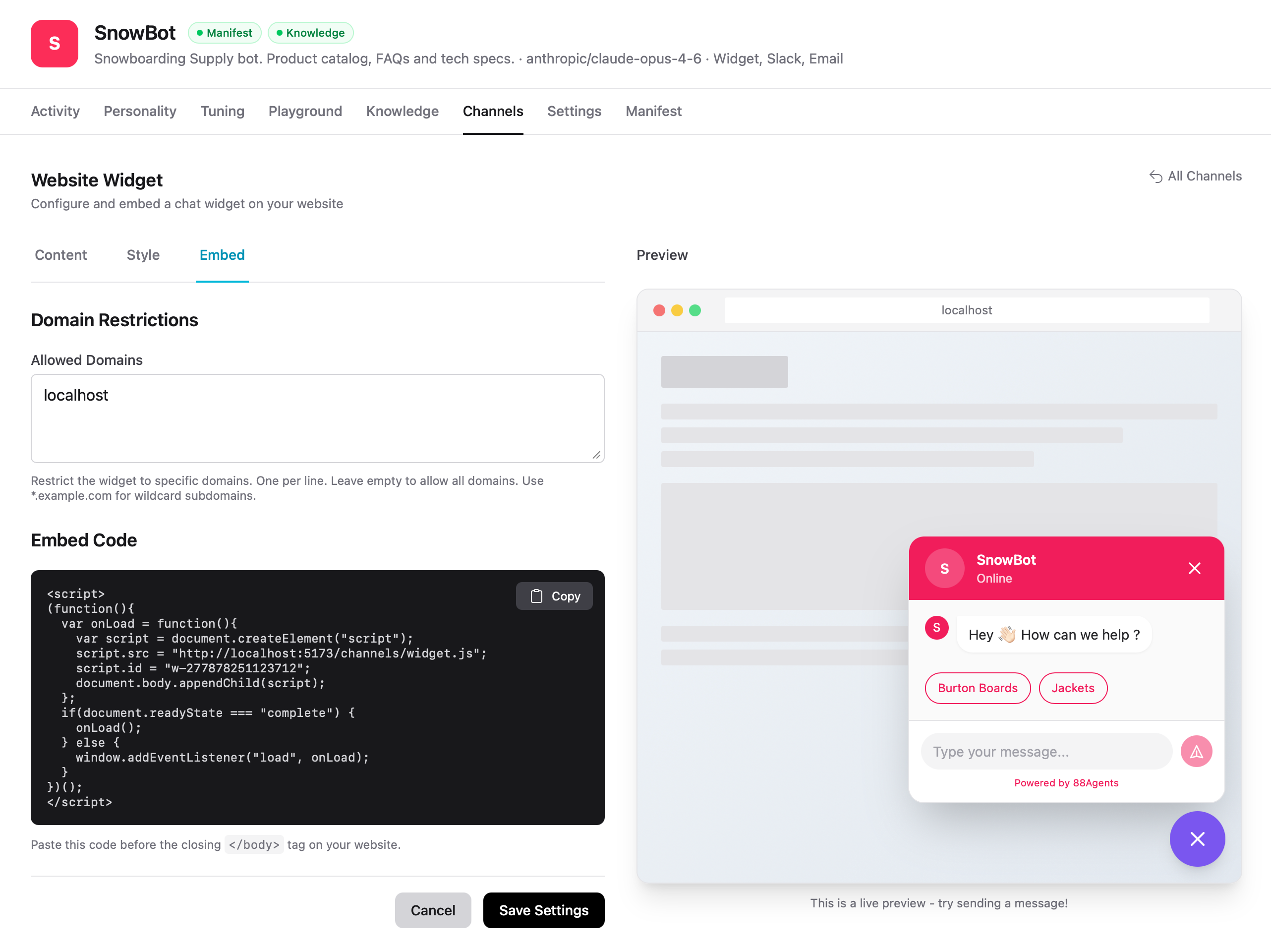
Configure where the widget can run and get the code to install it.
Domain Restrictions — Restrict the widget to specific domains. Enter one domain per line. Use *.example.com for wildcard subdomains. Leave empty to allow all domains.
Embed Code — Copy the generated snippet and paste it before the closing </body> tag on your website.
<script>(function(){ var onLoad = function(){ var script = document.createElement("script"); script.src = "https://app.88agents.co/channels/widget.js"; script.id = "w-YOUR_AGENT_ID"; document.body.appendChild(script); }; if(document.readyState === "complete") { onLoad(); } else { window.addEventListener("load", onLoad); }})();</script>Tip
Slack
Connect your agent to Slack so it can reply to DMs and mentions. Once connected, select a Slack credential and choose which channels the agent should respond in.
- Go to your agent's Channels page and click Configure on the Slack card
- Select your Slack credential (set up in Workspace → Integrations)
- Choose which channels the agent should monitor — or select All channels
- Save your settings
Note
Let your agent auto-reply to incoming emails. Configure an email inbox credential and the agent will poll for new messages at a set interval.
- Go to your agent's Channels page and click Configure on the Email card
- Select your email inbox credential
- Set the poll interval (how often the agent checks for new emails)
- Choose whether to auto-create contacts for new senders
- Save your settings
API
Every agent has an API endpoint for programmatic access. Use it to build custom integrations, embed the agent in mobile apps, or connect it to automation workflows.
The API channel is always enabled. Your endpoint and authentication details are shown on the API card:
| Field | Description |
|---|---|
| Endpoint | POST /api/agents/:agent_id/chat |
| Auth | API Token (set up in your account settings) |
See the API Reference for full endpoint documentation.
Coming Soon
Additional channels are on the roadmap:
- WhatsApp — Respond to customer messages on WhatsApp Business. Requires a WhatsApp Business API credential.
- SMS / Twilio — Respond to inbound SMS messages via Twilio. Requires a Twilio account with a phone number.
Note
Note