Create an Agent
This guide walks you through creating and configuring an agent. By the end, you'll have a fully configured AI agent ready to deploy.
Create an Agent
Click + New Agent in the sidebar to open the creation dialog. Enter a name and optional description, then click Create Agent.
| Field | Description | Required |
|---|---|---|
| Name | Display name for your agent (e.g., "BI Bot") | Yes |
| Description | A short description of what the agent does | No |
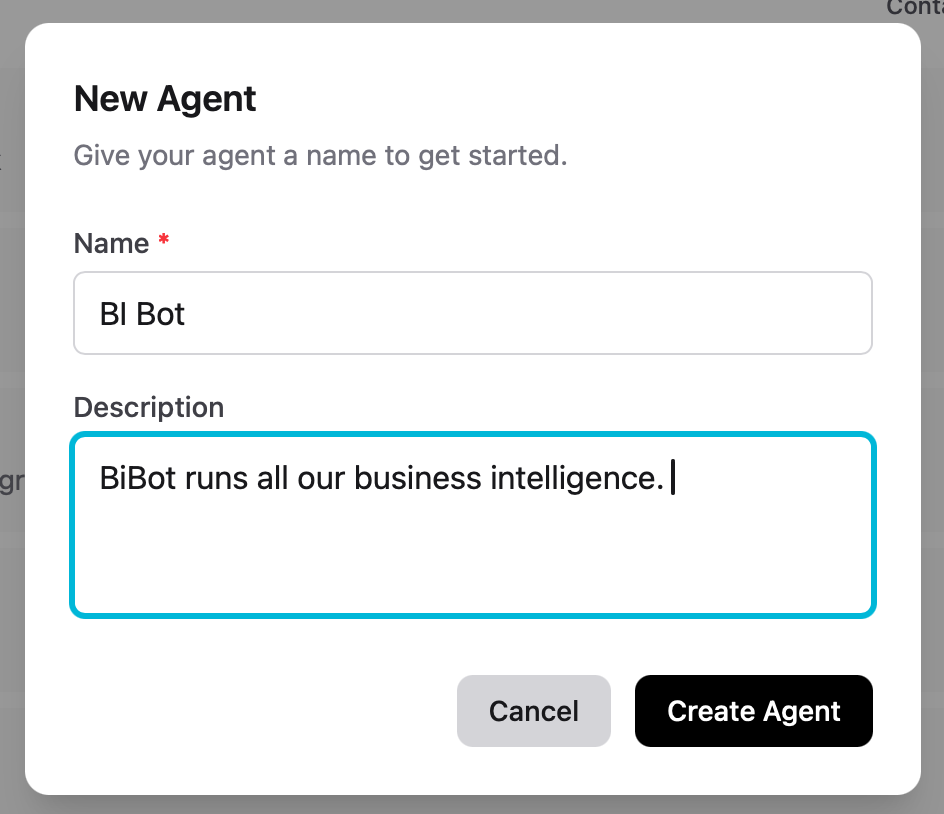
After creation, you'll be taken to the Personality page to configure your agent.
Personality
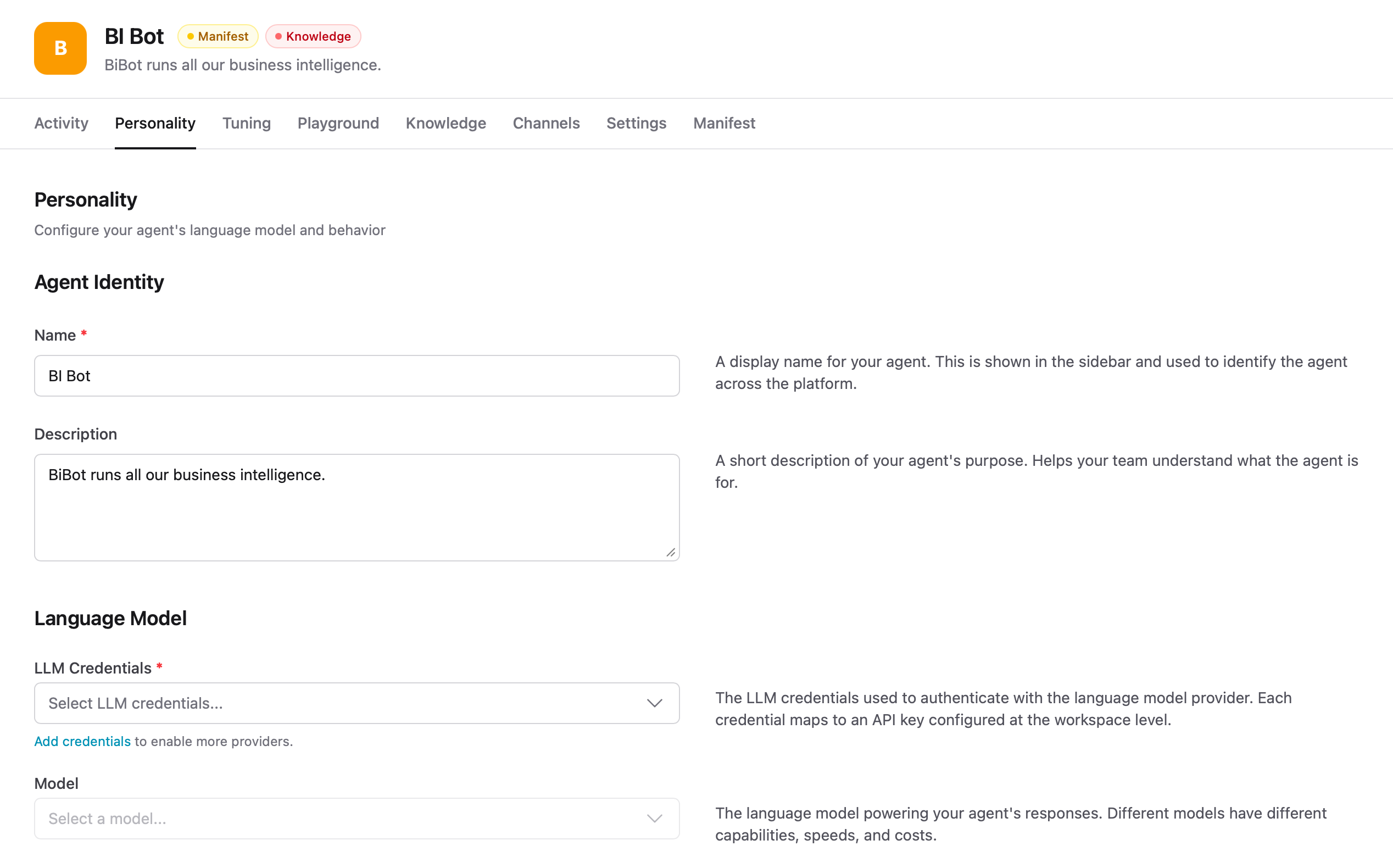
The Personality page is where you configure your agent's identity, language model, and behavior. It has three sections.
Agent Identity
Update your agent's name and description. The name is shown in the sidebar and across all channels. The description helps your team understand what the agent is for.
Language Model
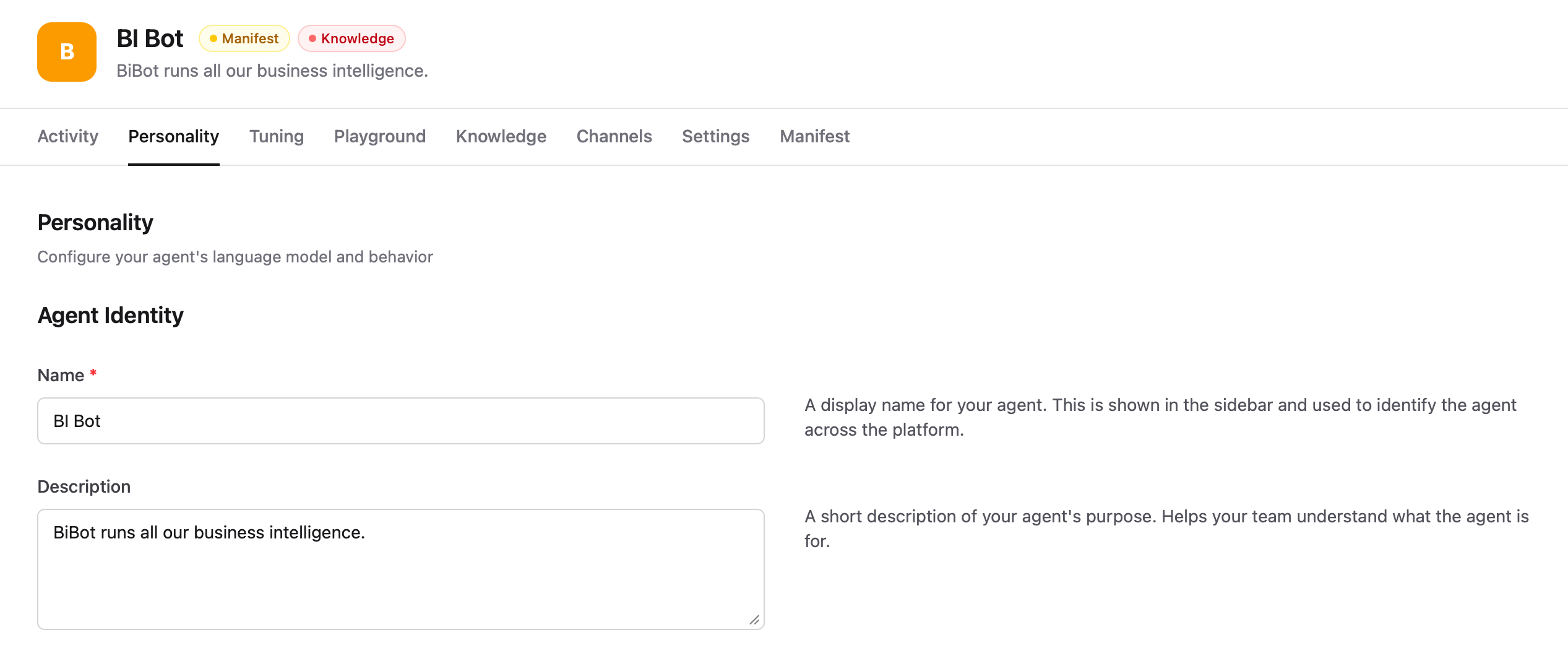
Select which AI model powers your agent's responses.
| Setting | Description |
|---|---|
| LLM Credentials | Select the API key to use. Each credential maps to a provider (OpenAI, Anthropic, or Google Gemini) configured at the workspace level. |
| Model | The specific model to use. Available models depend on the selected credentials. |
| Temperature | Controls response creativity. Lower values (0-0.3) give focused, consistent answers. Higher values (0.8-2) produce more varied, creative responses. |
Instructions (System Prompt)
Define your agent's personality, tone, and behavior. You can start from a template or write your own from scratch. Good prompts include:
- Role and expertise level
- Response style (formal, casual, concise)
- What to do when unsure
- Topics to avoid or redirect
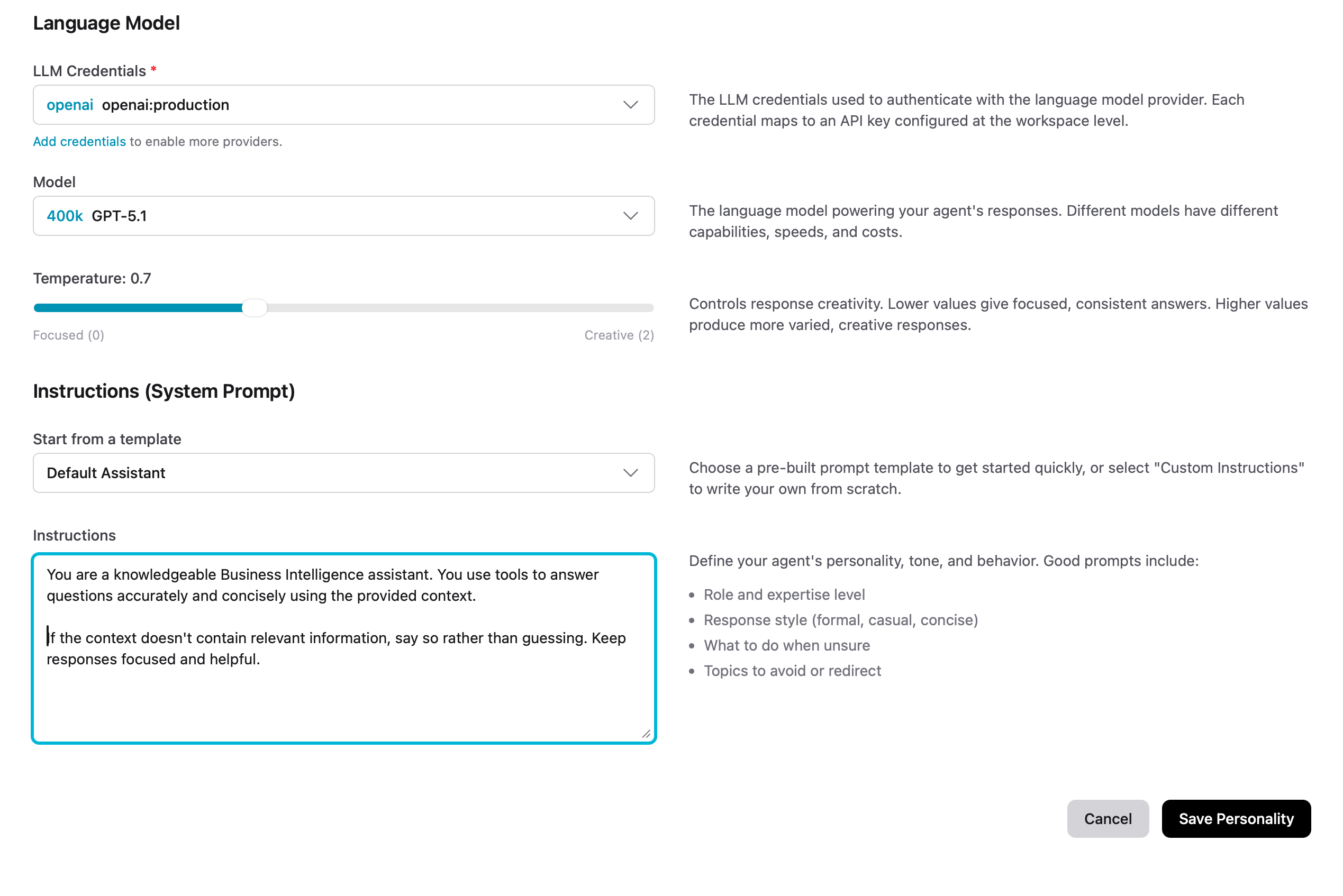
Click Save Personality when you're done. You'll be taken to the Tuning page.
Tuning
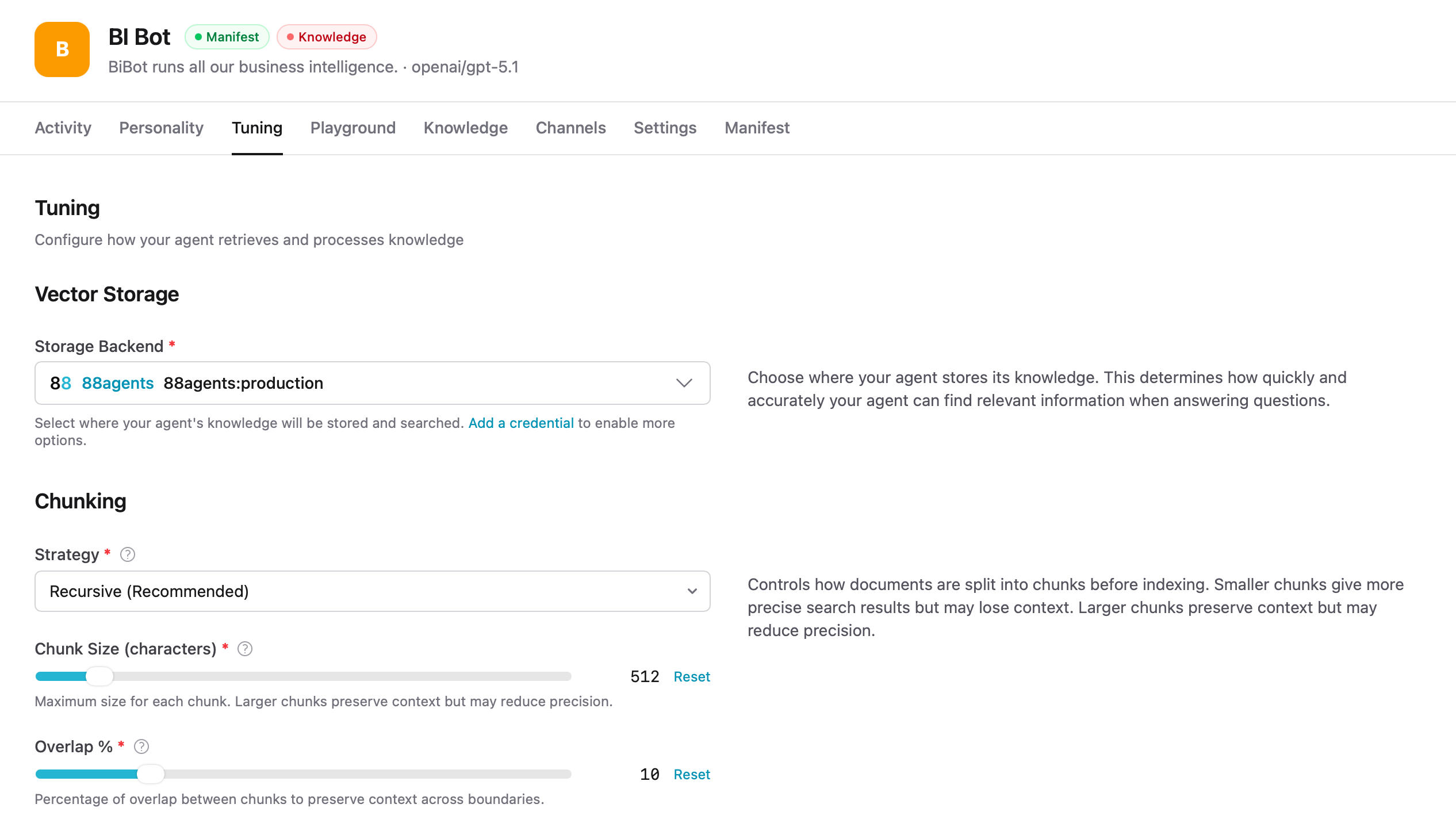
The Tuning page configures how your agent retrieves and processes knowledge. These settings control the RAG (Retrieval-Augmented Generation) pipeline.
Vector Storage
Choose where your agent stores its knowledge. This determines how quickly and accurately your agent can find relevant information when answering questions.
Chunking
Controls how documents are split into chunks before indexing.
| Setting | Description |
|---|---|
| Strategy | How documents are split. Recursive is recommended for most use cases. |
| Chunk Size | Maximum size for each chunk in characters. Larger chunks preserve context but may reduce precision. |
| Overlap % | Percentage of overlap between chunks to preserve context across boundaries. |
Embedding
Configure how text is converted into vector representations for semantic search.
| Setting | Description |
|---|---|
| Embedding Model | The model used to generate vector embeddings for your documents. |
| Index Type | How vectors are stored and searched. HNSW is faster but uses more memory. IVFFlat uses less memory but queries are slower. |
| Distance Metric | Cosine Similarity is recommended for most text embeddings. |
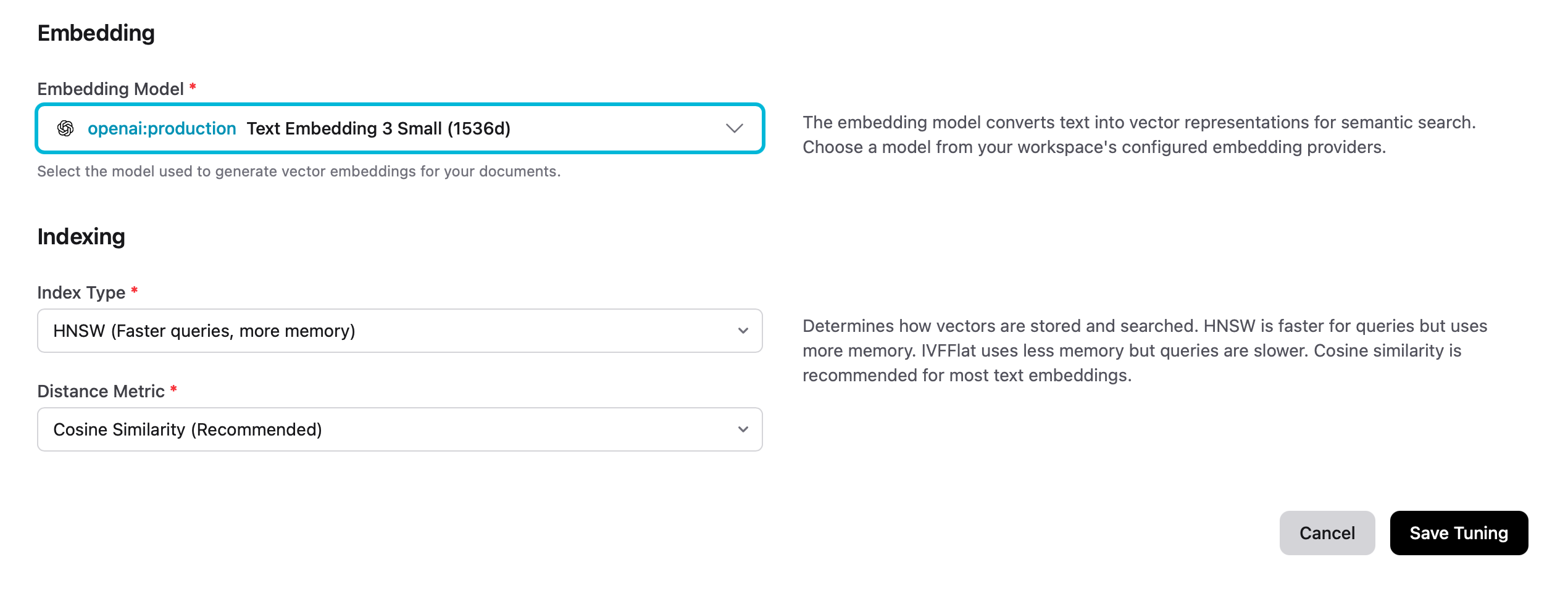
Click Save Tuning when you're done. You'll be taken to the Knowledge page.
Knowledge
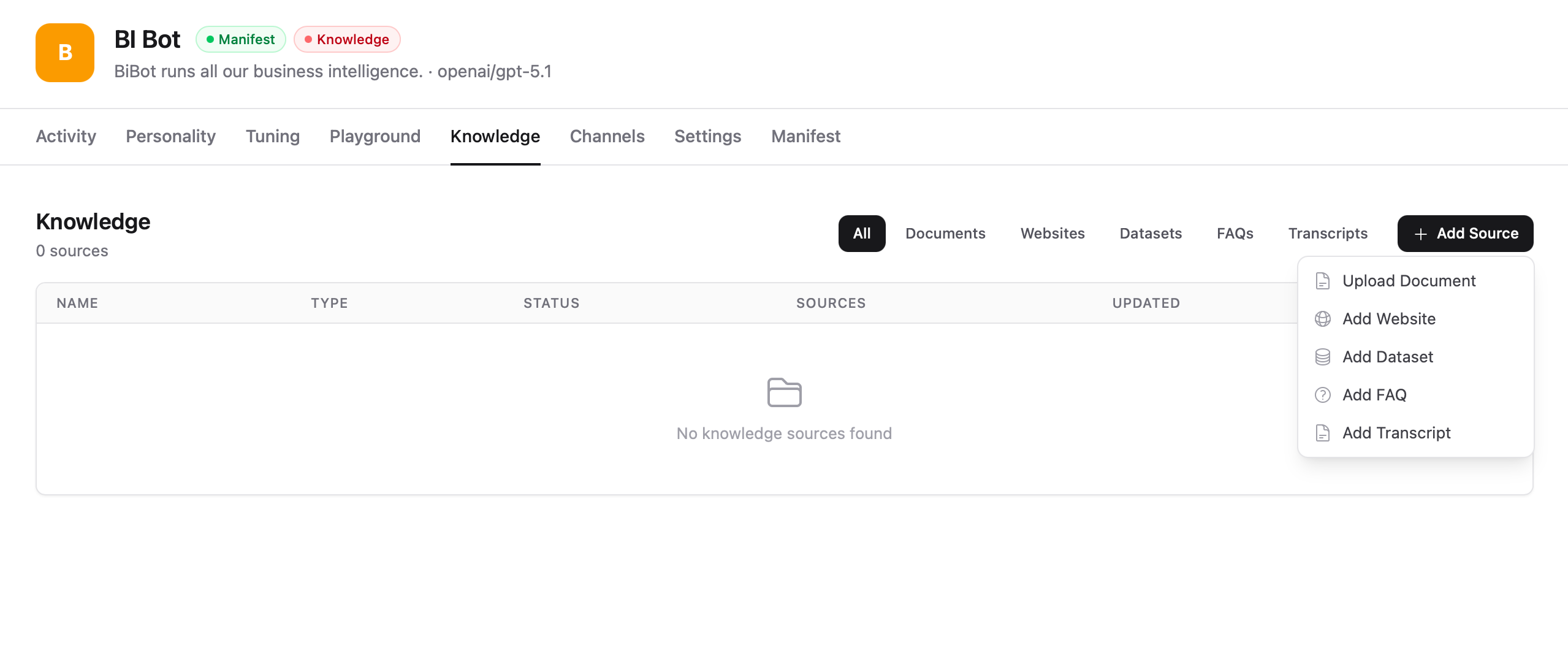
Add sources that your agent will use to answer questions. Click + Add Source to choose from the available types:
- Upload Document — PDF, Word, text, and Markdown files
- Add Website — Crawl and index web pages
- Add Dataset — Structured data from CSV and JSON
- Add FAQ — Question-answer pairs for common queries
- Add Transcript — Video and audio transcripts
Depending on your use case, you might want one knowledge source, multiple, or none at all.
Adding a Website
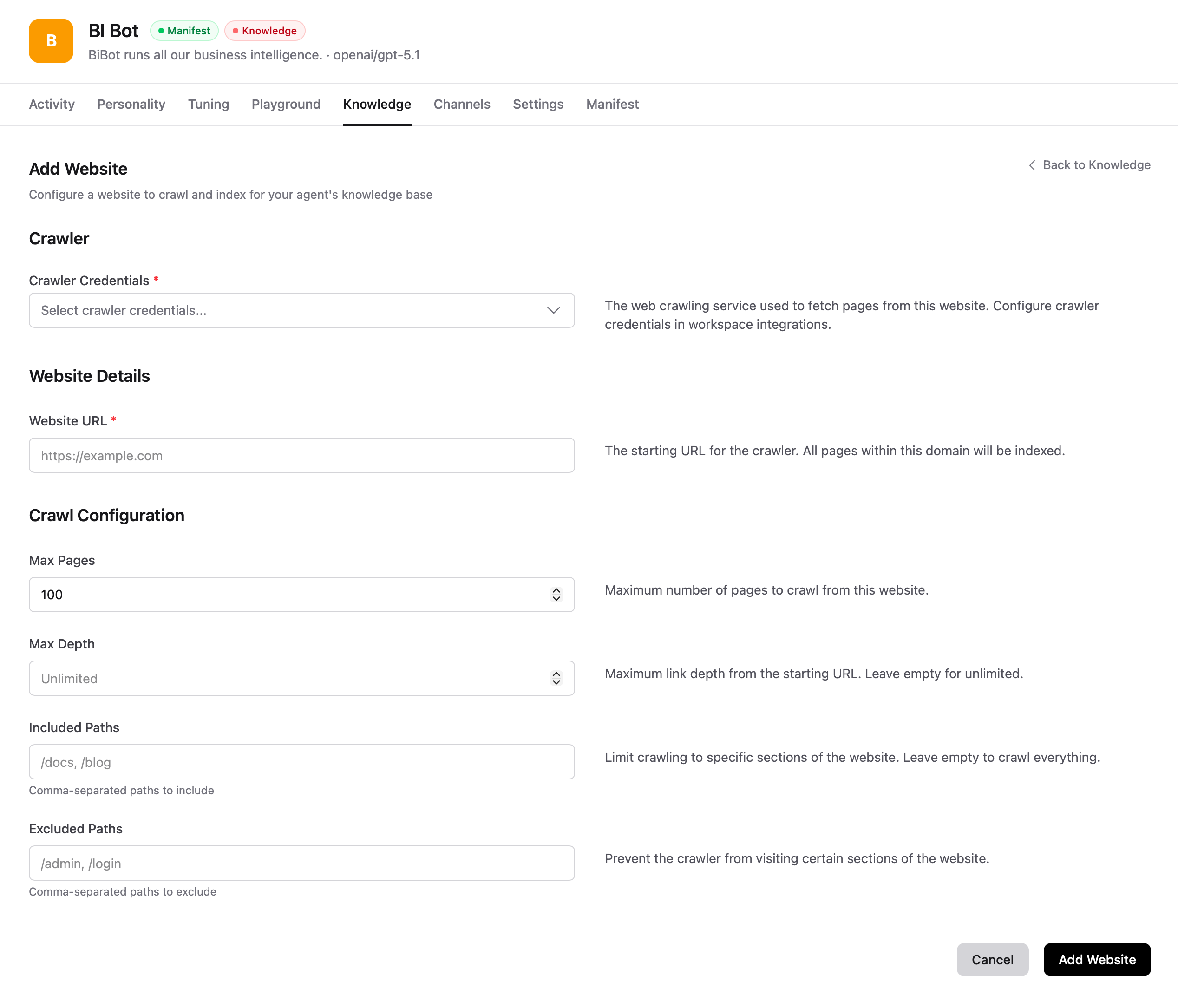
To crawl a website, you'll need a crawler integration (like Firecrawl) configured in your workspace credentials. Enter the website URL, configure crawl limits, and click Add Website. Indexing begins right away — large sites can take a while.
| Setting | Description |
|---|---|
| Crawler Credentials | The web crawling service used to fetch pages. |
| Website URL | The starting URL. All pages within this domain will be indexed. |
| Max Pages | Maximum number of pages to crawl. |
| Max Depth | Maximum link depth from the starting URL. Leave empty for unlimited. |
| Included Paths | Limit crawling to specific sections (e.g., /docs, /blog). |
| Excluded Paths | Prevent the crawler from visiting certain sections (e.g., /admin, /login). |
Channels
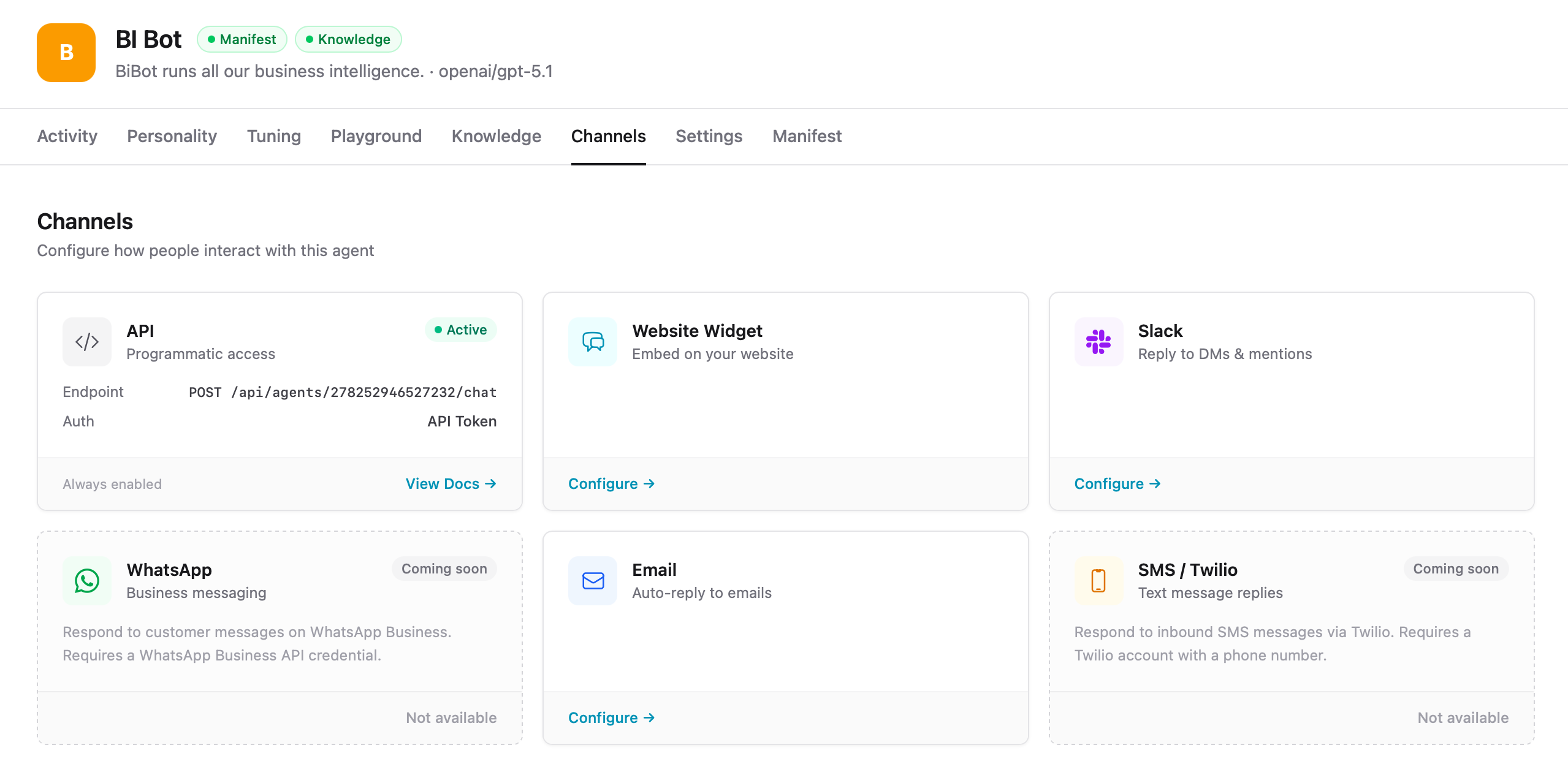
Channels are how people interact with your agent. After configuring knowledge sources, head to the Channels tab to connect your agent to one or more channels.
- API — Always enabled. Programmatic access via REST API.
- Website Widget — Embeddable chat widget for your website.
- Slack — Reply to DMs and mentions in Slack.
- Email — Auto-reply to emails via IMAP/SMTP.
- WhatsApp — Coming soon.
- SMS / Twilio — Coming soon.
Click Configure on any channel to set it up. Each channel can be configured independently. See Channels for detailed setup instructions.
Tip