Monitoring
The Activity tab is your agent's control centre. It gives you an at-a-glance overview of usage, recent conversations, and quick access to chat sessions, contacts, schedules, analytics, and logs.
Activity Dashboard
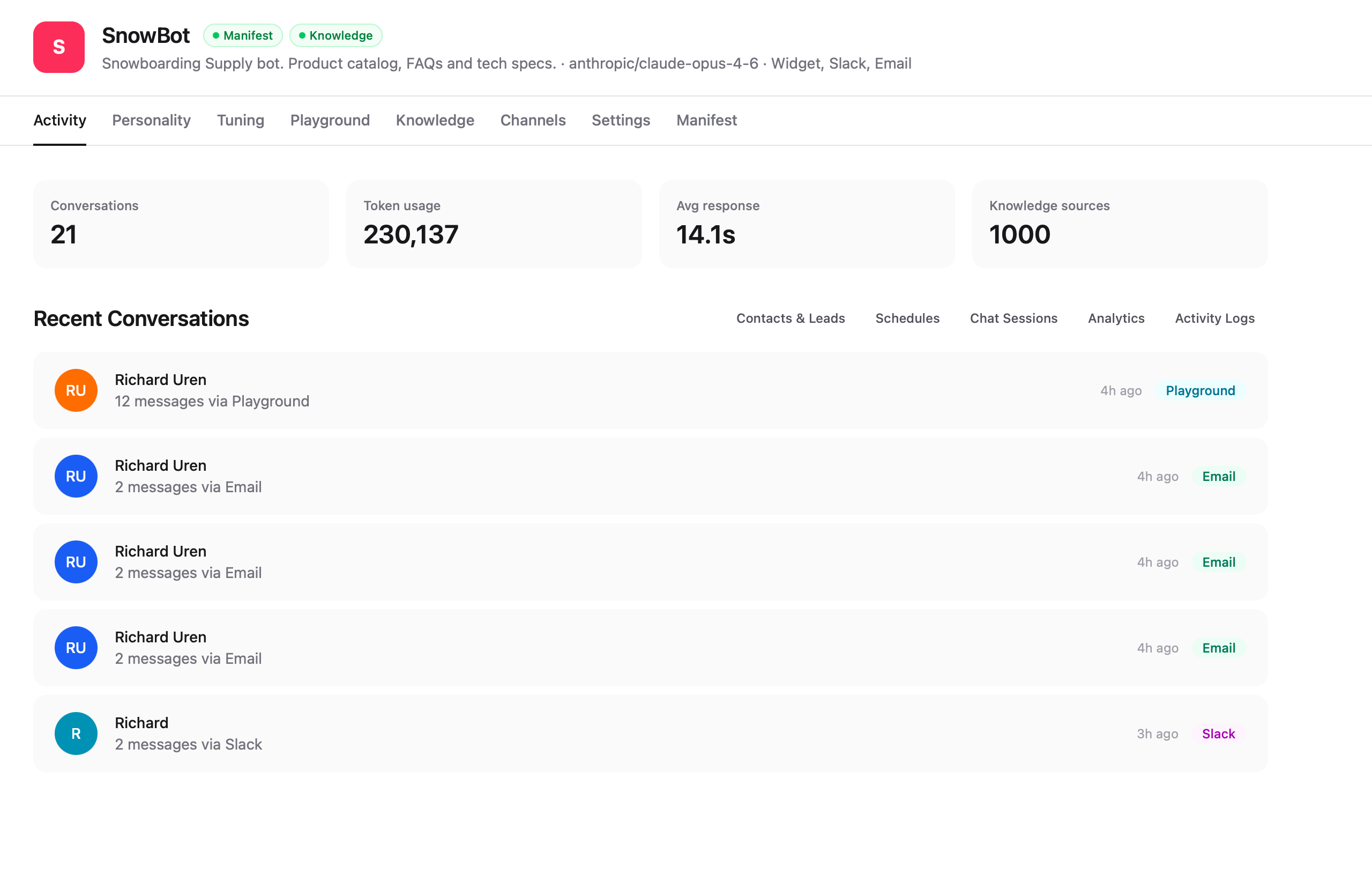
The dashboard shows four summary cards at the top:
| Metric | Description |
|---|---|
| Conversations | Total chat sessions across all channels |
| Token usage | Total LLM tokens consumed |
| Avg response | Average time the agent takes to respond |
| Knowledge sources | Total indexed knowledge chunks available to the agent |
Below the stats, Recent Conversations lists the latest sessions showing the contact name, message count, channel, and how recently the session was active.
Use the sub-tabs to navigate between views:
- Contacts & Leads — People who have interacted with your agent
- Schedules — Scheduled tasks and their status
- Chat Sessions — Full session list with filtering
- Analytics — Usage charts and trends
- Activity Logs — Event log for agent updates, document changes, and errors
Contacts & Leads
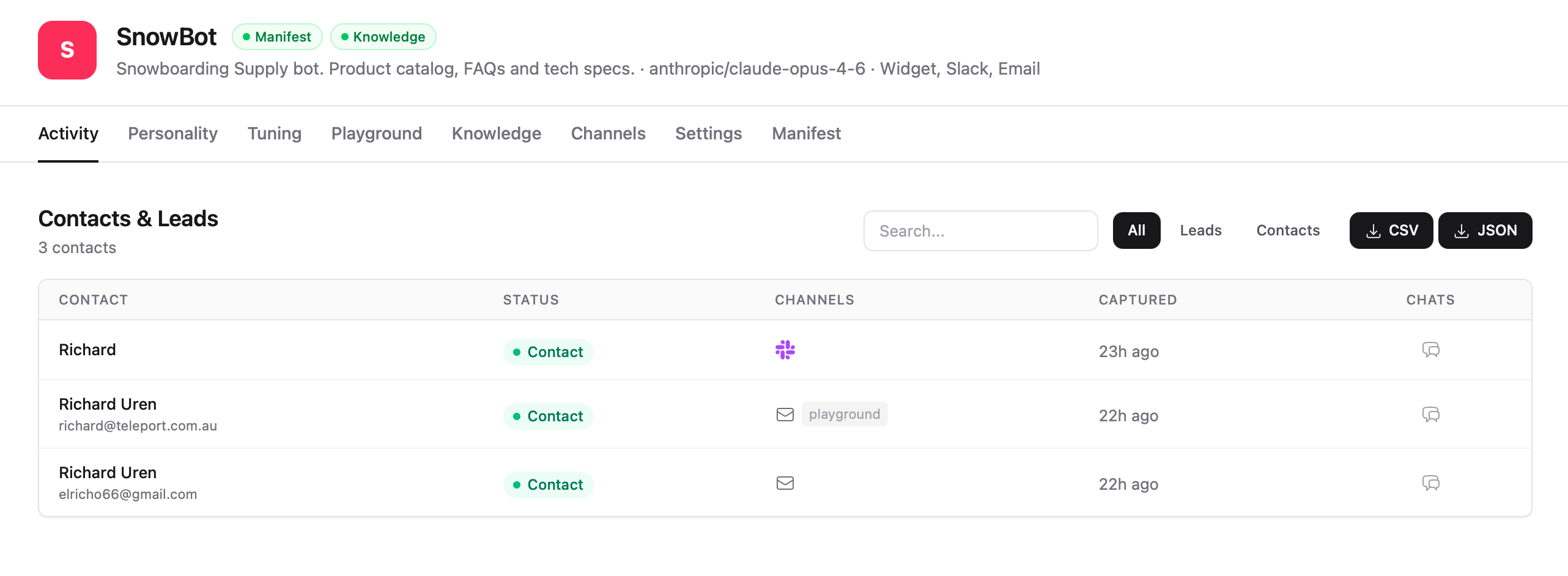
When contacts are enabled in your agent's settings, channels automatically collect contact information from the people your agent interacts with. Each channel captures what it naturally has access to:
- Email — name and email address
- Slack — Slack ID and display name
- WhatsApp — phone number
- Widget — any metadata passed via the embed
The contacts list shows:
| Column | Description |
|---|---|
| Contact | Name and email (or other identifier) collected from the channel |
| Status | Contact or Lead |
| Channels | Which channels this person has interacted through |
| Captured | When the contact was first seen |
| Chats | Link to view all chat sessions for this contact |
Filter by All, Leads, or Contacts, and use the search bar to find specific people. Export your contact list as CSV or JSON.
Chat Sessions
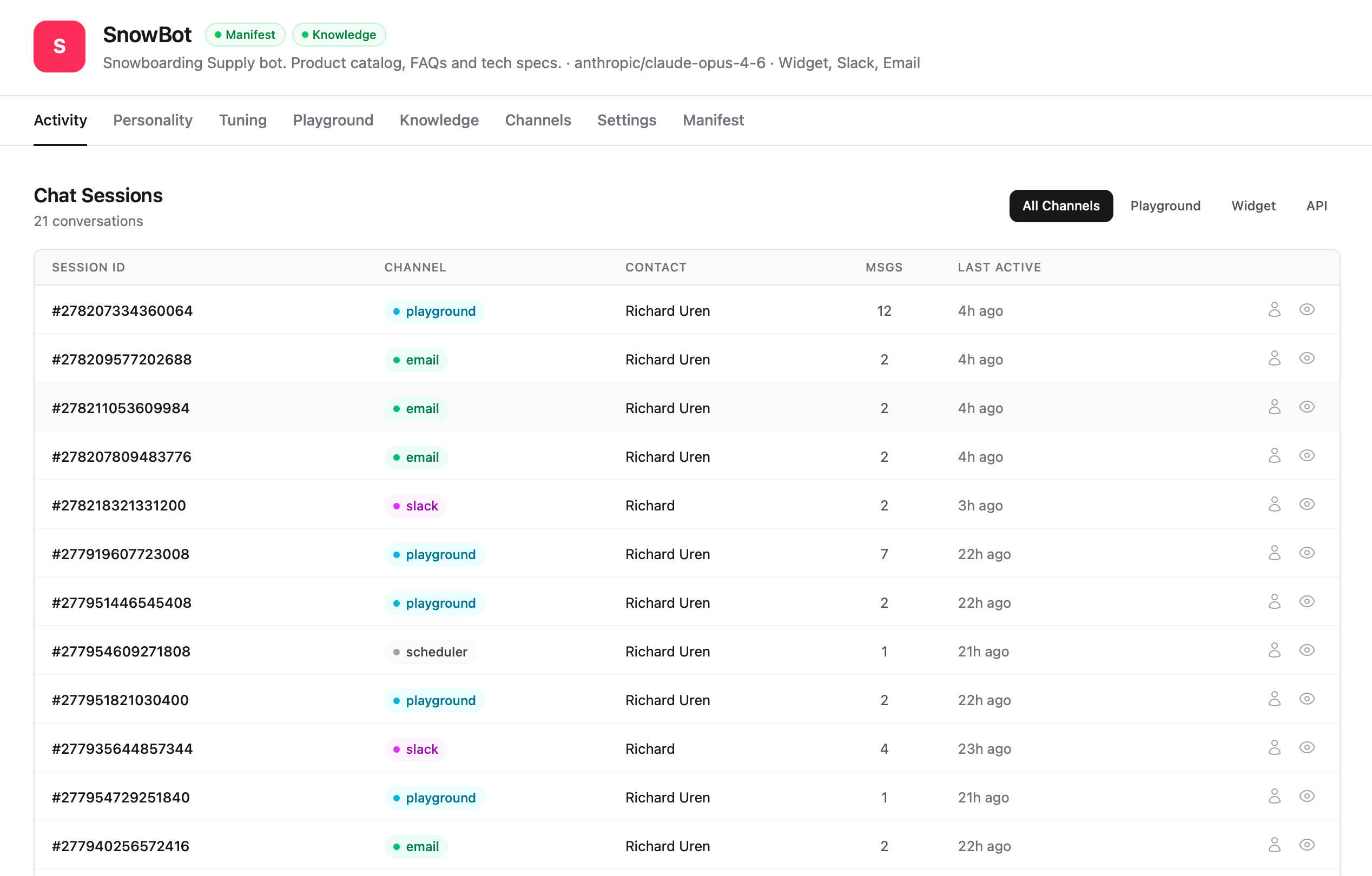
The sessions list shows every conversation your agent has had. Each row includes:
| Column | Description |
|---|---|
| Session ID | Unique identifier for the conversation |
| Channel | Where the conversation happened — playground, widget, slack, email, scheduler, or API |
| Contact | The person who initiated the conversation |
| Msgs | Total message count in the session |
| Last Active | How recently the session had activity |
Use the channel filter tabs (All Channels, Playground, Widget, API) to narrow the list to a specific channel.
Session Detail
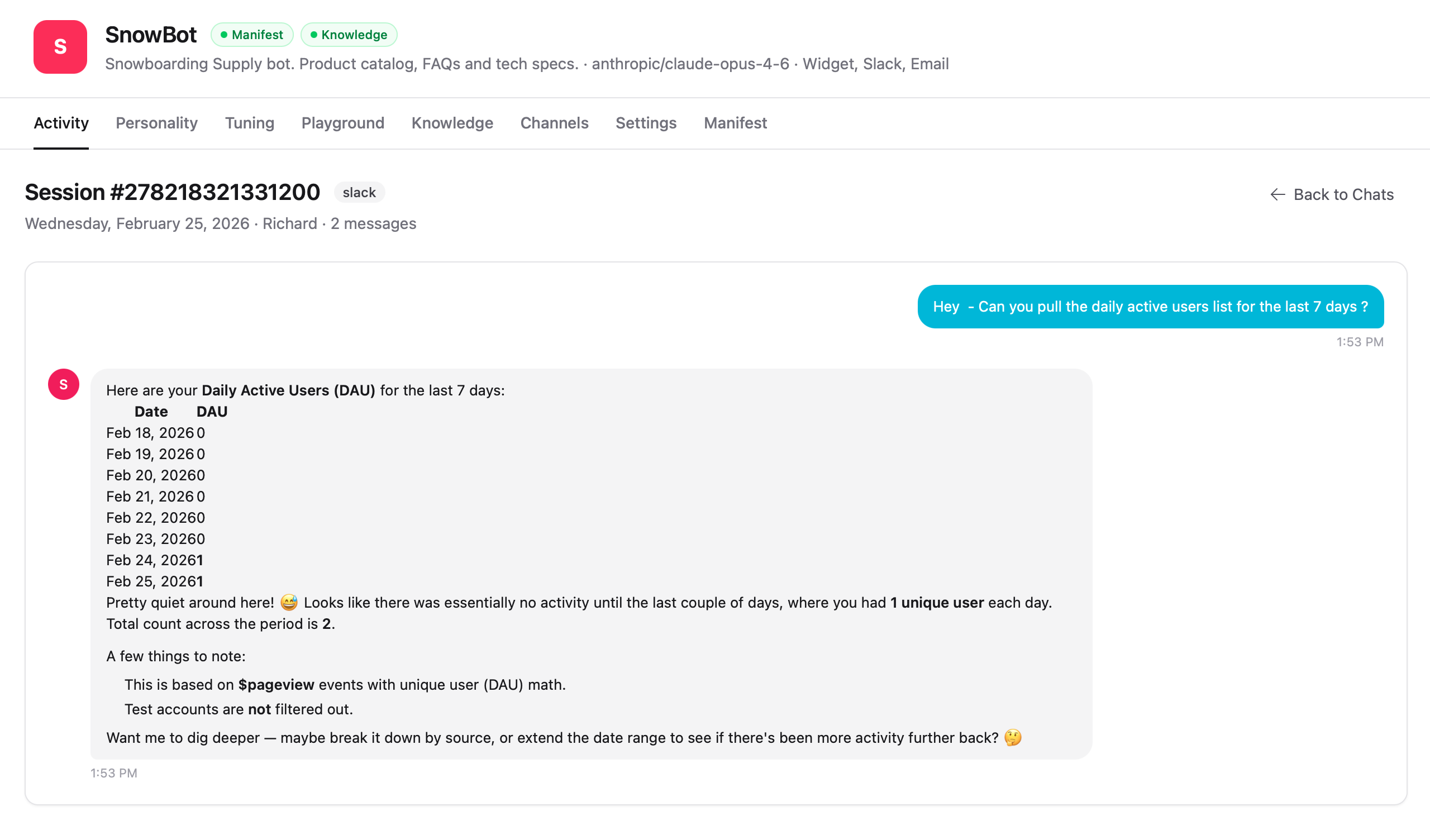
Click on any session to open the full transcript. The detail view shows:
- The session ID and channel badge
- Date, contact name, and message count
- The complete message history — user messages on the right, agent responses on the left
Tip