Credentials
Credentials store API keys and service connections at the workspace level. Once added, they're available to any agent in the workspace that needs them.
Managing Credentials
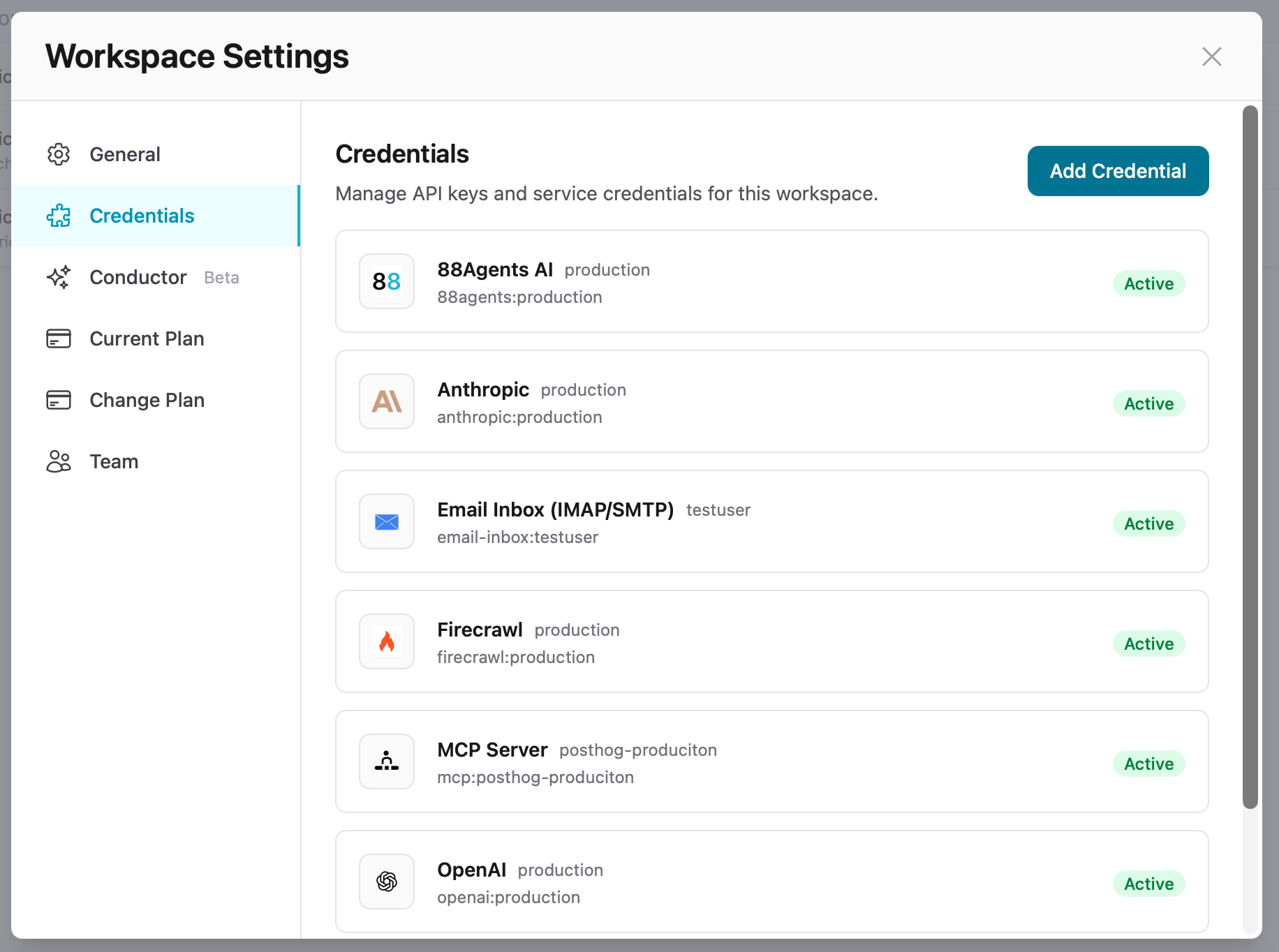
The Credentials tab shows all configured API keys and service connections. Each credential displays its provider, tag name, reference ID, and status.
Supported Providers
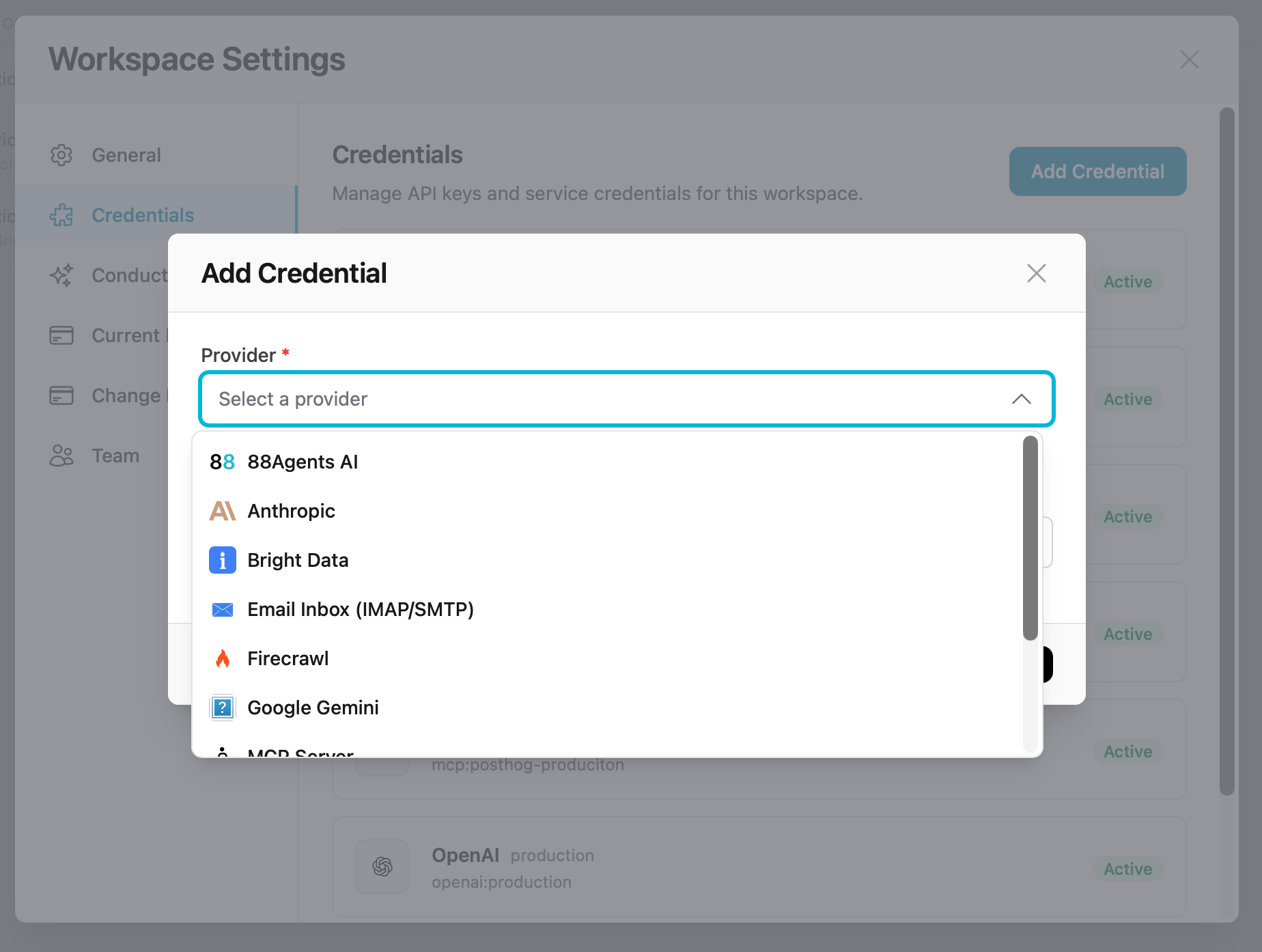
| Provider | Used For |
|---|---|
| 88Agents AI | 88Agents hosted models |
| Anthropic | Claude models (LLM) |
| OpenAI | GPT models (LLM) and embeddings |
| Google Gemini | Gemini models (LLM) and embeddings |
| Firecrawl | Web crawling for knowledge sources |
| Bright Data | Web crawling (alternative provider) |
| Email Inbox (IMAP/SMTP) | Email channel — inbox credentials for auto-reply |
| MCP Server | Model Context Protocol server connections for agent tools |
Adding a Credential
- Go to Workspace Settings → Credentials
- Click Add Credential
- Select a provider from the dropdown
- Enter a tag name (e.g.
production,testuser) - Provide the required keys or connection details
- Save
Credential References
Each credential gets a reference ID in the format provider:tag — for example anthropic:production or email-inbox:testuser. This is how agents and manifests reference credentials without exposing secrets.
Note
Credentials are stored encrypted and never exposed in agent manifests or API responses. Only the reference ID is visible.
Note
LLM, crawling, embedding, and storage credentials can be shared across many agents. Channel credentials (Slack, Email) map to a single agent only.